Edit Your Profile
Update your contact information and organizer details.
What you'll learn in this guide
Follow these steps to master edit your profile. Each step includes detailed instructions and screenshots.
Go to My Profile Start
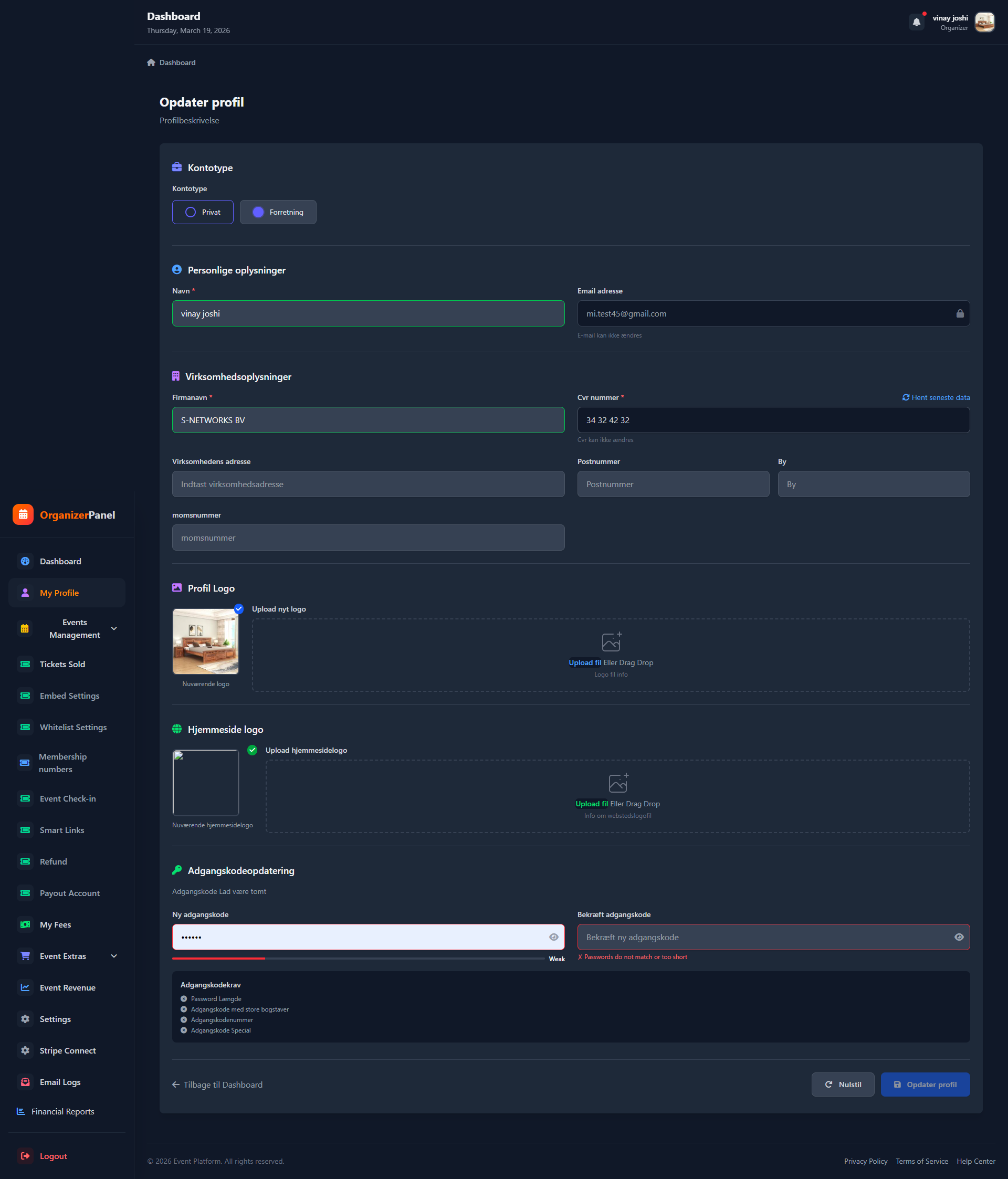
Click on your profile picture at the top right corner of the screen. A dropdown menu will appear with several options. Select "My Profile" from the list. This will open your profile page where you can view and edit your information.
Edit Your Information
On the profile page, you can update the following information: ๐ค Name - Your full name displayed to customers, ๐ง Email - Your contact email (used for all notifications), ๐ Phone Number - Your contact number for support, ๐ข Organization - Your company or organization name, ๐ Website - Your business website address, ๐ Address - Your physical address (optional). All fields can be changed at any time. Click the pencil icon next to each field to start editing.
Save Changes
After making your changes, remember to save them. Click the blue "Save Profile" button at the bottom of the page. You will see a confirmation message when your changes have been saved. If you leave the page without saving, your changes will be lost. You can always return and edit your information again later.
๐ Congratulations!
You've completed the guide for Edit Your Profile. If you have questions, please contact our support.
๐ข Was this article helpful?
Still have questions?
Our support team is ready to help you 24/7